
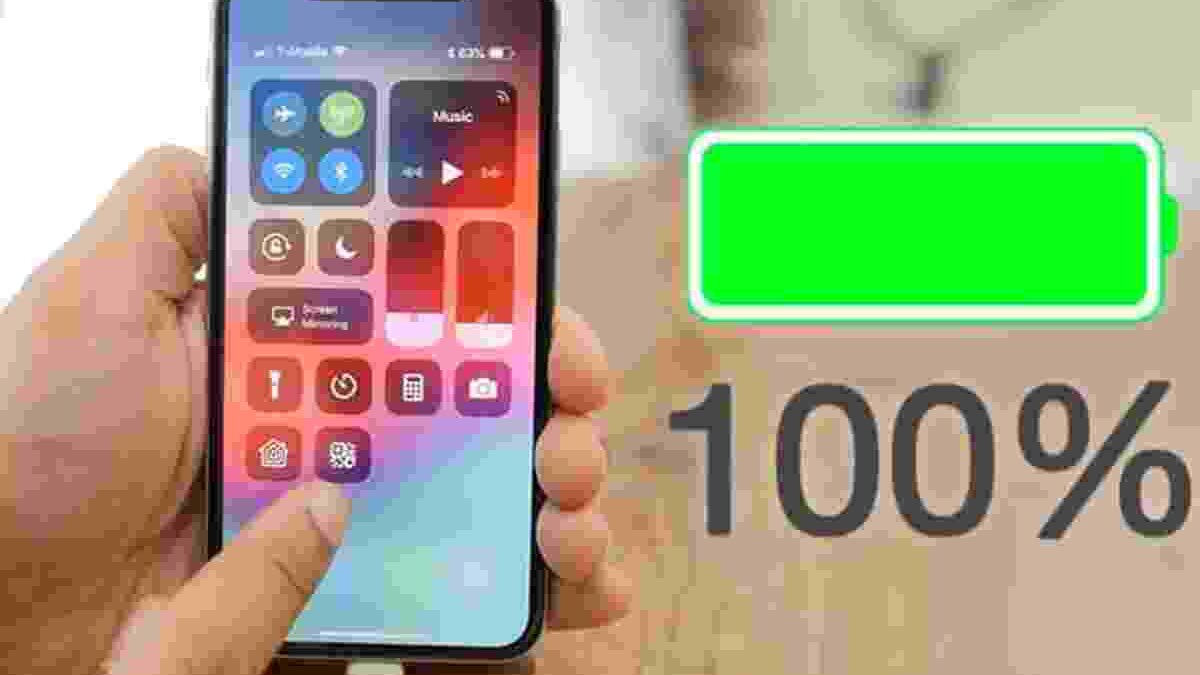
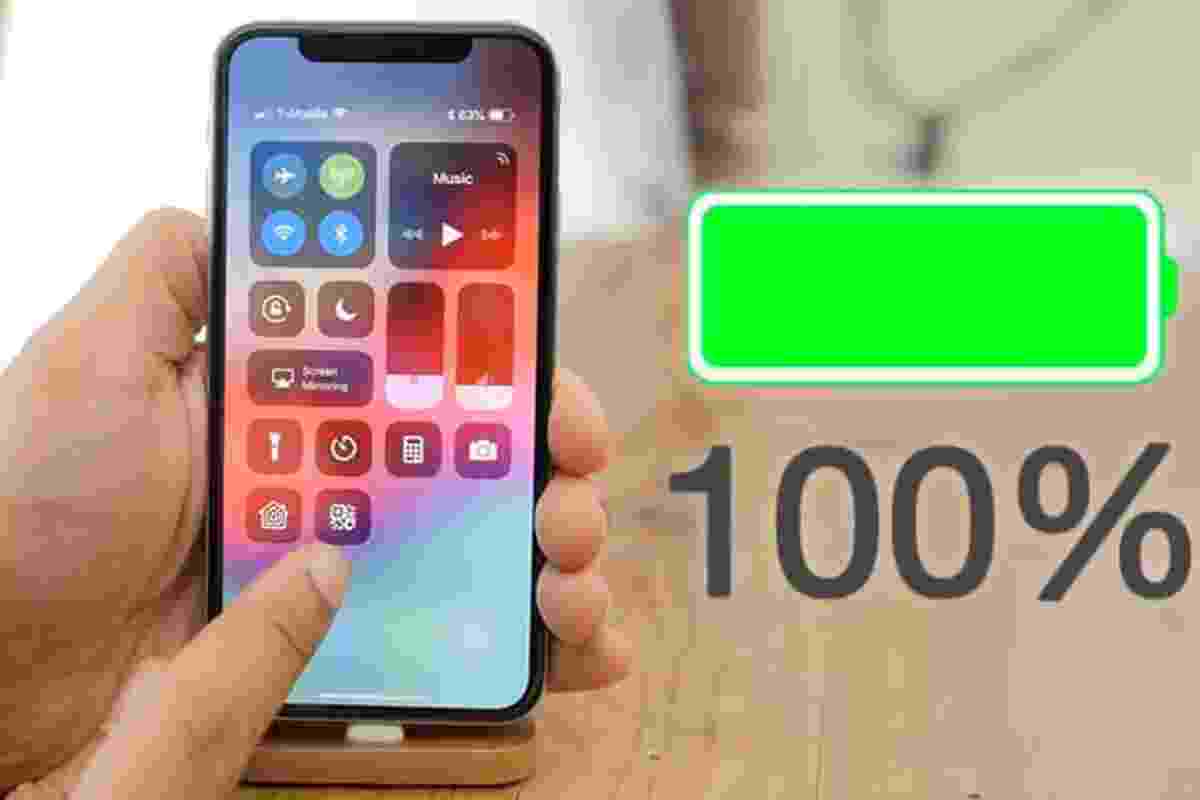
Knowing the battery percentage on your iPhone 11 helps you plan your day, avoid unexpected shutdowns, and decide when to recharge. Although the phone has a Face ID design that leaves less space in the status bar, checking the remaining charge is straightforward once you know where to look.
You can check the battery level through the Control Centre, enable the percentage indicator in Settings on supported iOS versions, add a Batteries widget, or ask Siri. You can also review battery health to understand whether your phone’s battery is losing capacity over time.
Table of Contents
Show Battery Percentage on iPhone 11 in the Control Centre
The Control Centre is one of the quickest ways to check your remaining battery percentage. You do not need to open Settings or install another application.
Follow these steps:
- Unlock your iPhone 11 or wake its screen.
- Place your finger near the top-right corner of the display.
- Swipe down to open the Control Centre.
- Look at the battery symbol near the top of the screen to see the remaining charge percentage.
For example, if the battery indicator shows 45%, your iPhone has approximately 45% of its current usable charge remaining.
This method is particularly useful when you are using an application, browsing the internet, or watching a video. You can check the battery without leaving your current activity.
Enable Battery Percentage in the Status Bar
You may also be able to display the battery percentage directly inside the battery icon. This makes it easier to check your remaining charge without repeatedly opening the Control Centre.
To enable it:
- Open the Settings app.
- Tap Battery.
- Find the Battery Percentage option.
- Turn it on if it is available.
On supported iOS versions, the percentage appears inside the battery symbol in the status bar. If you cannot find this option, check whether your iPhone is running an updated iOS version and review the available settings for your device.
The exact appearance may vary by software version. If the option is unavailable, the Control Centre remains a reliable way to check your charge.
Add the Batteries Widget to Your Home Screen
A Batteries widget provides another convenient way to monitor your iPhone’s charge. Depending on the widget style, it can also show battery levels for compatible connected accessories.
To add the widget to your Home Screen:
- Touch and hold an empty area of the Home Screen until the icons begin to move.
- Tap Edit or the add-widget control, depending on your iOS version.
- Search for Batteries.
- Select the widget style you prefer.
- Tap Add Widget, then position it where you want.
- Finish by tapping Done.
You can now check the battery level directly from the Home Screen.
Can You Add a Battery Widget to the Lock Screen?
Some iOS versions support widgets on the Lock Screen. If this feature is available on your iPhone, touch and hold the Lock Screen, enter the customisation mode, and choose the widget area beneath the clock.
Select the Batteries widget if it appears among the available options. Follow the prompts to save your changes.
A widget can be helpful when you need to check your charge quickly, especially before leaving home. However, the available widget styles and locations depend on the installed iOS version.
Ask Siri for the Remaining Battery Percentage
Siri offers a hands-free way to check your battery level. This can be useful when your hands are occupied or you are unable to look at the screen.
Depending on your settings, activate Siri by using the available voice command or pressing the appropriate button. Then ask:
“Hey Siri, what is my battery percentage?”
Siri should respond with the available battery information.
If Siri does not respond, check that it is enabled in Settings and that your microphone and voice activation settings are working correctly. You can also use the Control Centre whenever voice commands are inconvenient.
For privacy and convenience, remember that Siri’s availability depends on your settings, language, and software configuration.
Check Your Battery While Charging
Connecting your iPhone 11 to a charger provides another opportunity to monitor the remaining charge. The charging symbol appears on the screen, and the battery percentage can be checked through the status bar or Control Centre.
To charge your phone safely:
- Connect a compatible charging cable and power adapter.
- Plug the adapter into a suitable electrical outlet.
- Check the battery indicator to confirm that charging has started.
- Allow the phone to charge while keeping it away from excessive heat.
You can also use a compatible power bank when travelling. A wireless charging accessory may be another option if it supports your iPhone 11.
There is no need to enable Airplane Mode every time you charge your phone. It can reduce power consumption by disabling wireless connections, but it is not a requirement for safe charging. Your normal charging routine should focus on using suitable equipment and avoiding excessive heat.
Understand Battery Health on iPhone 11
The battery percentage tells you how much charge remains right now. Battery health is different: it helps you understand how much capacity the battery can hold compared with when it was new.
To check battery health:
- Open Settings.
- Tap Battery.
- Select Battery Health & Charging.
- Review the Maximum Capacity and Peak Performance Capability information.
Maximum Capacity is shown as a percentage. A lower figure means the battery holds less charge than it could when new, so you may need to recharge more frequently.
For example, a battery with 85% maximum capacity has less total capacity than it had when new. This does not mean the phone is currently charged to 85%; the current charge percentage and maximum capacity measure different things.
Rechargeable batteries gradually age through normal use. If you notice unusually short battery life, unexpected shutdowns, or a battery service recommendation, review the information shown in Settings.
Apple explains that battery ageing can affect both capacity and performance. If the phone reports that service is recommended, consider having the battery checked by Apple or an authorised service provider.
Improve Battery Life Between Charges
Checking the percentage is useful, but managing power consumption can help you get more time from each charge.
Start by reviewing battery usage in Settings. This can help identify applications that consume a significant amount of power. Some apps use energy while displayed on the screen, while others may use power through background activity, location services, or network connections.
Try these practical steps:
- Reduce screen brightness: A bright display can use considerable power, especially during long sessions.
- Use Low Power Mode: Enable it from Settings under Battery when you need to extend your remaining charge.
- Review background activity: Restrict unnecessary background activity where appropriate.
- Manage location access: Allow location access only when an application genuinely needs it.
- Maintain a reliable connection: Weak mobile signals can increase power consumption as the phone searches for service.
- Avoid excessive heat: High temperatures can negatively affect battery performance and long-term battery health.
If you use your iPhone while exercising, you may also be tracking activity on a compatible wearable such as the Garmin Vivoactive 4. Remember that your phone and watch have separate batteries, so check each device’s charge before a long workout.
If you enjoy listening to music during water-based workouts, choosing suitable audio equipment is equally important. Explore these swimming headphones to understand the features to consider for swimming, including water resistance, fit, and playback options.
Does Airplane Mode Help Save Battery?
Airplane Mode disables cellular connections and may also affect other wireless features, depending on your settings. Because the phone uses less power for certain network activities, it can help conserve charge in situations where you do not need a mobile connection.
However, it is not a universal solution. You may still need WiFi, Bluetooth, calls, messages, or navigation during the day. Use Airplane Mode when it suits your circumstances rather than keeping it enabled unnecessarily.
For long journeys, prepare in advance by charging your phone, carrying a power bank, and reducing screen brightness when practical. If you plan to stream entertainment or manage a home media device while travelling, consider how much screen time and wireless activity your plans will require. You can also explore this Apple TV Black Friday guide when researching home entertainment equipment and related buying options.
Can You Test an iPhone 11 Battery With an App?
Be cautious about applications that claim to test or repair your battery. Some can display useful usage information, but an ordinary app cannot physically restore worn battery capacity.
For the most relevant built-in information, start with the Battery and Battery Health & Charging sections in Settings. Avoid installing unfamiliar applications that request unnecessary permissions or promise unrealistic battery improvements.
If your phone’s charge drops unusually quickly, restart it, install available software updates, and review battery usage. If the problem continues, a professional diagnostic check may help identify a worn battery or another hardware issue.
A battery replacement should be handled by a qualified technician. Attempting to open the phone without appropriate tools and experience can damage internal components.
Conclusion
Checking the battery percentage on an iPhone 11 is simple once you know the available options. The Control Centre offers a quick check, while the Battery Percentage setting and Batteries widget can make monitoring more convenient when supported by your iOS version. Siri provides another hands-free option.
For longer-term battery care, check Maximum Capacity, review power-hungry apps, use Low Power Mode when needed, and avoid excessive heat. If battery health information indicates that service is recommended, seek professional advice rather than relying on battery-testing apps.
By monitoring both your current charge and battery health, you can make better decisions about charging, daily use, and when your iPhone may need maintenance.