

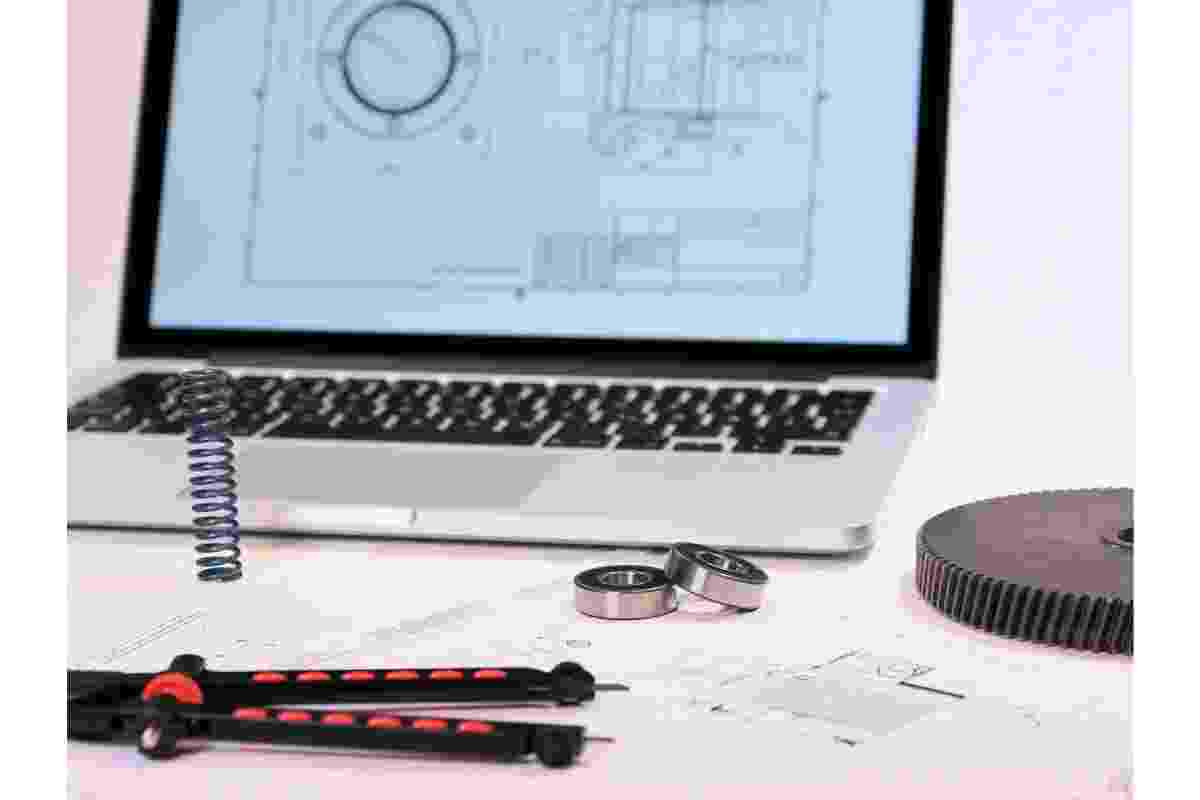
An engineering computer must be fast, efficient, reliable, and versatile enough to handle demanding software. Choosing the right laptop is especially important for engineering students and architects because their work can involve technical drawings, 3D modelling, simulations, architectural visualizations, and complex calculations.
I have often come across the question: What is the best computer or laptop for engineering students and architects?
The answer depends on your budget, the type of work you perform, and the programs you need to run. Mechanical, civil, electrical, and aeronautical engineering students may require different hardware configurations depending on their coursework. Similarly, architects working with 2D drawings have different requirements from professionals developing complex 3D models and realistic visualizations.
This guide explains how to choose the best laptop or PC for engineering students and architects. It covers processors, RAM, graphics cards, storage, displays, cooling, budget categories, and discipline-specific requirements to help you make an informed decision.
Table of Contents
Budget: How Much Should You Spend on an Engineering Laptop?
Most students have a limited budget and naturally want the cheapest computer available. However, choosing a laptop based entirely on its price can become an expensive mistake if it cannot run the required engineering applications efficiently.
Generally, more expensive laptops offer better performance, improved graphics, more memory, and additional features. Nevertheless, you do not always need the most expensive computer. The right choice depends on your workload and the applications you use regularly.
For example, a student who primarily uses Microsoft Office, browses technical documents, and views engineering drawings may not need a powerful workstation. Someone working with AutoCAD, Revit, SolidWorks, MATLAB, or Unreal Engine may benefit significantly from a faster processor, more RAM, and a dedicated graphics card.
Before making a purchase, compare several models within your budget. Consider the processor generation, memory capacity, storage type, graphics performance, warranty, and upgrade options rather than focusing exclusively on the advertised price.
Understand Your Engineering and Architectural Needs
Understanding your actual requirements is essential when selecting the best laptop for engineering students.
Consider two different users:
- An architect who develops large projects in Revit, AutoCAD, and other 3D modelling applications.
- An engineering student who mainly opens technical drawings, reviews reports, prepares presentations, and completes assignments.
The first user needs a considerably more capable computer, particularly when working with complex models, rendering, and multiple applications simultaneously. The second user can often work comfortably with a mid-range laptop.
The most important recommendation is to purchase a computer that meets your real requirements without paying for unnecessary features. Buying an underpowered machine may save money initially, but slow performance, frequent freezes, and long rendering times can make everyday work frustrating.
If your budget is limited, prioritize the components that directly affect your software performance. You can often upgrade storage or memory later, provided the laptop supports those upgrades.
Essential Steps for Choosing the Best Engineering Laptop
1. Define Your Budget
Start by establishing the maximum amount you can spend. Include essential accessories, software expenses, and any additional equipment you may need.
Compare computers at different price points, and avoid paying extra for decorative features or gaming-oriented designs that do not improve your engineering workflow.
Students considering extremely inexpensive devices should carefully examine their limitations. For instance, laptops under 200 euros may be suitable for basic browsing, documents, and lightweight study tasks, but many models in this price range will struggle with demanding CAD applications.
A slightly older business laptop with a capable processor and upgradeable memory may provide better value than a new, low-powered device.
2. Choose the Right Processor
The processor, or CPU, is one of the most important components in an engineering computer. Intel and AMD offer processors across a wide range of performance levels.
For basic academic work and simple 2D drafting, a modern entry-level processor may be sufficient. However, a recent Intel Core i5 or AMD Ryzen 5 is a more sensible starting point for students who expect to run multiple engineering applications.
A Core i7, Core Ultra 7, or Ryzen 7-class processor can be useful for more demanding workloads, although the precise model and generation matter more than the product name alone. High-performance Core i9 and Ryzen 9 processors may benefit professionals handling particularly complex calculations, simulations, or intensive workloads.
Processor performance also depends on cooling and power limits. A thin laptop with a high-end processor may not sustain the same performance as a larger workstation with better cooling.
For architectural modelling, consider strong single-core performance as well as sufficient multicore capability. Some modelling operations respond particularly well to faster individual cores, while rendering and certain calculations can take advantage of multiple cores.
3. Select Sufficient RAM
RAM determines how much working data your computer can manage efficiently while applications are running.
For general academic work and basic drafting, 8 GB may be usable, but it is a limited choice for a new engineering laptop. 16 GB RAM is a practical starting point, while 32 GB is preferable for students working regularly with Revit, large CAD projects, simulations, or several demanding applications simultaneously.
Professionals working with large building models, complex assemblies, extensive datasets, or advanced rendering may benefit from 64 GB or more.
Insufficient RAM can cause the system to rely heavily on storage, slowing down application switching and model operations. Before purchasing, check whether the memory is upgradeable because some slim laptops have RAM permanently soldered to the motherboard.
4. Choose the Right Graphics Card
Graphics requirements vary considerably between engineering disciplines.
For basic 2D AutoCAD work, integrated graphics may be sufficient when they meet the application’s requirements. However, 3D modelling, architectural visualization, rendering, and GPU-accelerated applications can benefit from a dedicated graphics card.
Look for a modern NVIDIA GeForce RTX or AMD Radeon GPU with sufficient dedicated video memory. For many student workflows, a dedicated GPU with 6–8 GB of VRAM provides a useful starting point, although complex projects may require more.
Older graphics cards can still provide value in the second-hand market. For example, the GTX 1660 Ti was a capable gaming GPU in its generation and may handle some older or moderately demanding 3D workloads. However, it lacks newer RTX-generation features, so check application compatibility and benchmark results before buying a laptop equipped with it.
Remember that a powerful graphics card does not automatically make a laptop suitable for every engineering task. CPU performance, RAM, cooling, and software compatibility remain important.
5. Choose the Screen Size and Display Quality
Screen size is partly a personal preference, but it can significantly affect productivity.
A 14-inch laptop is convenient for students who travel frequently between classrooms, libraries, and home. A 15.6-inch or 16-inch display offers more workspace for CAD interfaces, property panels, drawing sheets, and multiple windows.
A Full HD display is a reasonable minimum for general work. Higher-resolution displays can provide sharper text and more detailed drawings, particularly when working with large plans or visual presentations.
Architects and designers should also consider colour accuracy, brightness, viewing angles, and external-monitor support. If you frequently compare drawings, inspect materials, or prepare presentations, these features can be more valuable than a high refresh rate.
6. Choose the Right Laptop Type and Brand
Dell, Lenovo, HP, ASUS, Acer, and other established manufacturers offer laptops suitable for different engineering workloads. Rather than choosing solely by brand, compare the specifications of individual models.
Mobile workstations can be appropriate for professionals who need robust construction, workstation-class graphics, extensive memory support, or certified drivers for specific applications. Gaming laptops are another option because many include powerful CPUs and dedicated GPUs at competitive prices.
However, gaming laptops may be heavier, noisier, and less portable than conventional laptops. Check battery life, keyboard quality, warranty coverage, and cooling performance before purchasing.
Students who value portability above graphics performance may prefer an ultrabook. These lightweight laptops are excellent for lectures, note-taking, research, and office applications, but many lack the cooling capacity or dedicated graphics required for demanding 3D engineering workloads.
7. Check Storage Capacity and Speed
Storage affects application loading, project opening, file transfers, and overall responsiveness.
A solid-state drive (SSD) should be a priority when choosing a modern engineering laptop. Compared with traditional hard drives, SSDs generally provide much faster access to files and applications.
A 512 GB SSD is a reasonable starting point for many students, while a 1 TB SSD offers more room for software installations, CAD projects, textures, simulation files, and backups.
If you work with large architectural models, video files, or 3D assets, consider whether the laptop supports an additional SSD. External storage can also help archive completed projects, but active project files are usually more convenient on fast internal storage.
Keep sufficient free space available for temporary files, application updates, and large project exports.
8. Consider Cooling, Battery Life, and Accessories
Engineering software can place sustained loads on the CPU and GPU, generating considerable heat. When temperatures rise too high, a laptop may reduce its operating speed to protect its components.
Check reviews that examine sustained performance, fan noise, and thermal behaviour rather than relying only on short benchmark results. A laptop cooling pad may help some laptops maintain airflow, particularly when used on a desk, but it cannot compensate for a poorly designed cooling system or blocked vents.
Battery life is another consideration for students who attend lectures or work away from a power outlet. High-performance laptops typically consume more power under demanding workloads, so expect shorter battery life during rendering or simulation.
A compatible external laptop battery may be useful when the manufacturer supports external charging through the required power-delivery standard. Check wattage, voltage compatibility, and the laptop’s charging requirements before purchasing one.
Finally, consider practical accessories. An external monitor, ergonomic mouse, and comfortable keyboard can improve productivity when working on large drawings. A suitable printer, including a Bluetooth printer, can also be useful for printing assignments, reference documents, and smaller technical drawings. For large engineering plans, check paper-size support and print quality before choosing a printer.
Recommended Laptop Specifications by Budget
The following budget categories reflect the original article’s US dollar ranges. Actual prices vary by country, configuration, and availability.
Low Budget: Around $700
At this price, focus on a balanced configuration rather than buying the laptop with the most impressive appearance.
Recommended priorities include:
- A modern Intel Core i5 or AMD Ryzen 5 processor.
- 16 GB RAM, preferably upgradeable.
- A 512 GB SSD.
- A Full HD display.
- Integrated graphics for basic drafting, or a suitable dedicated GPU if 3D work is essential.
A computer in this category may handle AutoCAD, Archicad, and moderate projects effectively, depending on the exact configuration. Revit and Unreal Engine workloads will be more demanding, so check their individual requirements before purchasing.
Sales events can provide opportunities to find better specifications at a lower price. Refurbished business laptops may also be worth considering, provided they include a reliable battery, adequate cooling, and a warranty.
Intermediate Budget: $750–$1,000
This range can provide a good balance between performance, portability, and price.
Look for a recent Core i5/Core Ultra 5 or Ryzen 5/Ryzen 7 processor, 16–32 GB RAM, a 512 GB or 1 TB SSD, and a dedicated GPU where your applications benefit from one.
This configuration is suitable for many engineering students working with CAD, moderate 3D models, technical reports, and programming tools. ASUS, Dell, Lenovo, Acer, and HP all offer models worth comparing in this category.
Prioritize upgradeability, display quality, cooling, and warranty coverage over minor differences in appearance.
High Budget: More Than $1,000
If your budget exceeds $1,000, you can consider higher-performance laptops designed for demanding workloads.
Useful specifications may include a Core Ultra 7 or Core i7-class processor, Ryzen 7 or Ryzen 9 processor, 32 GB RAM, a 1 TB SSD, and a modern dedicated GPU with sufficient VRAM.
For large Revit projects, detailed architectural visualization, GPU rendering, or complex 3D assemblies, 64 GB RAM and a more powerful graphics card may be worthwhile.
A high-end gaming laptop can offer excellent performance, while a professional mobile workstation may be preferable when certified drivers, specialized support, or workstation reliability are important.
Nevertheless, avoid spending your entire budget on a graphics card while neglecting memory, storage, display quality, and cooling.
Which Laptop Is Best for Your Engineering Discipline?
The best configuration depends on the work you perform most often.
| Engineering discipline | Main priorities |
|---|---|
| Civil engineering | Strong CPU, 16–32 GB RAM, suitable GPU for CAD and BIM |
| Mechanical engineering | Strong CPU, 16–32 GB RAM, dedicated GPU for 3D assemblies |
| Architecture | 32 GB RAM preferred, dedicated GPU, good display |
| Electrical engineering | CPU performance, sufficient RAM, compatibility with specialist software |
| Aeronautical engineering | Strong multicore CPU, ample RAM, and suitable GPU for simulation and modelling |
| General engineering studies | Modern mid-range CPU, 16 GB RAM, SSD |
These are general guidelines, not universal requirements. Always check the specifications of the actual software and version you plan to use.
For example, AutoCAD and Revit have different hardware requirements depending on the version and project complexity. Their official system requirements are useful references when comparing computers:
- AutoCAD system requirements
- Revit system requirements
Checking these requirements before purchasing helps ensure that your laptop can run your intended software reliably.
Final Conclusion
Choosing the best laptop for engineering students and architects requires balancing performance, budget, portability, and future needs. There is no single computer that is ideal for every student or professional.
For general engineering coursework and 2D drafting, a modern mid-range laptop with 16 GB RAM and an SSD is a sensible starting point. For regular Revit work, complex 3D modelling, and architectural visualization, consider 32 GB RAM, a stronger processor, and a capable dedicated graphics card.
Before making your final decision, compare the exact processor, GPU, RAM, storage, cooling system, warranty, and software compatibility of each shortlisted model. Most importantly, purchase a computer that can comfortably handle the programs you expect to use throughout your studies or professional career.
The best investment is not necessarily the most expensive laptop; it is the one that delivers reliable performance for your workload while leaving enough room in your budget for essential accessories and future upgrades.